You Can Now Record Your Calls on PuchiDen, Right in Your Browser
Since 23 November 2026, you can record a call from the PuchiDen dialler. You start every recording yourself, the other party hears a short notice, and the file is saved in your browser until you download it.
 Author
Iqbal Abdullah
I have a confession to make first. Our FAQ page used to answer "Do you record my calls?" with "No. Never." and added that recording "is not a future feature we are holding back". That was true when I wrote it. It is not the whole answer any more, so this post explains what changed.
In my post about calling an airline when the chatbot gets stuck, I told you to keep something within reach to write down the agent's name and the time of the call. I still do that. But a pen does not catch everything. When a bank agent reads out a reference number, or an insurance company tells you which form to send and to which address, you want to hear it again later, word for word.
So based on customer requests starting 23 November 2026, you can record the calls you make on PuchiDen.
How It Works
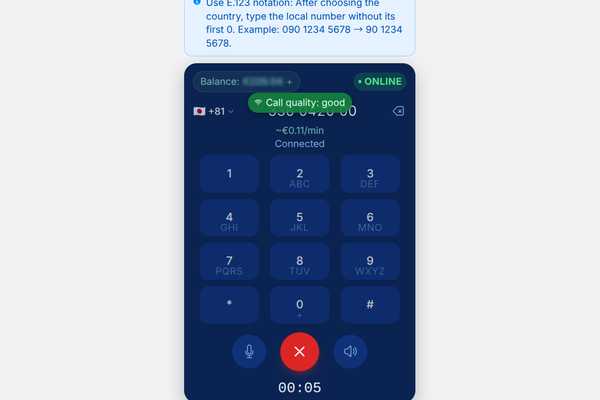
- Make a call as usual. The Record button appears in the dialler once it shows "Connected".
- Press Record. A small window opens. It reminds you that the law may require you to get the other party's consent, and it has a checkbox labelled "Play recording notice to the other party". The box is ticked by default.
- Press "Start recording". If the notice is on, the other party hears "This call is being recorded." and the recording starts.
- Press Stop when you are done, or simply hang up. The dialler tells you "Recording saved in this browser." and offers a "Download Now" button.
Every recording you made is listed on the Recordings page. From there you can play, download or delete each one.
Nothing records on its own. There is no "record every call" setting. You start every recording, for one call at a time.
Saved in Your Browser
This is an important that I would like you to understand concerning privacy and where your recordings go. Most of the services that I see on the internet that allows call recordings are not explicit enough about this.
The recording is made by your browser and saved in your browser's storage on the device you used for the call. That is why the Recordings page in Chrome on your laptop will not show a call you recorded in Safari on your phone. Each browser keeps its own.
This design has one consequence that you need to know about, and I want to be explicit about it: the download is your only backup. If you clear your browser's site data, the recordings go with it. Some browsers (Safari in particular) may also delete the stored data of a site you have not visited for a certain amount of days. So if a recording matters, press Download and keep the file somewhere you trust.
A few details about the file itself:
- Format. Most browsers save a WebM file. Safari saves an M4A file. Both play in players such as VLC, and M4A also plays in most built-in media players.
- Size. About 11 MB for an hour of talking. You need at least 50 MB of free space on your device to start a recording.
- Two channels. Your voice is on one channel and the other party is on the other. If you need to hear exactly what they said, turn your own channel down in your player.
- Crashes. The recording is written to storage every few seconds. If your browser crashes or you close the tab by accident, you lose at most those last few seconds. The Recordings page marks such a file as "Recovered after the page closed".
On an iPhone or iPad, keep the dialler page open and the screen on while you record. iOS can stop the recording when the screen locks or Safari goes to the background.
The Notice and the Law
The law about recording a phone call is different in every country, and in the US it is even different from state to state. Some places let you record as long as you are one of the people on the call. Others require that everyone on the call knows, or agrees. When you call from one country to another, the rules on both sides can apply.
I am not a lawyer, and PuchiDen cannot know which rules apply to your call. That is why the notice is on by default. The Terms of Service (§9.1) put it plainly: you are responsible for getting consent where the law requires it, and if you are not sure, keep the notice on. The notice helps you tell the other party. It does not, by itself, make every recording lawful.
Two more things about the notice:
- It is in English only for now. "This call is being recorded." is a sentence that most call centres in the world will understand, but if you are calling your grandmother in Osaka, tell her yourself.
- It needs your microphone. The notice is mixed into the audio you send, so the dialler asks you to unmute first. If the notice cannot be played for any reason, the dialler tells you so, and you should tell the other party yourself.
What It Costs
Recording is included with paid accounts at no extra cost. It unlocks after your first top-up. You pay only the normal per-minute rate for the call, and that rate does not change when you record. If you are still on the free trial credit, the Record button is greyed out and the dialler shows a "Top up to unlock call recording" link instead.
What I Left Out
Like every PuchiDen feature, this one is small on purpose. These are the things it does not do:
- No transcription and no AI summary. You get an audio file. What you do with it is up to you.
- No sync between devices. A recording stays in the browser that made it, until you download and delete it.
- No recording of calls to your virtual number. Those calls are forwarded to your own phone, not to the browser, so the dialler cannot see them.
- No automatic recording. You press the button, every time.
If you want to see the feature in a single page, there is a short overview at Call Recording in Your Browser. The Privacy Policy has the full detail. And if you have never made a call from your browser before, start with how to call a phone number from your computer with nothing to install.
The next time a bank agent reads out a twelve-digit reference number, press Record before they start.